How to Use the FTF Values Trade Calculator
A practical, source-aware walkthrough for entering both sides of a Flee the Facility trade and reading the result without treating one number as a promise.
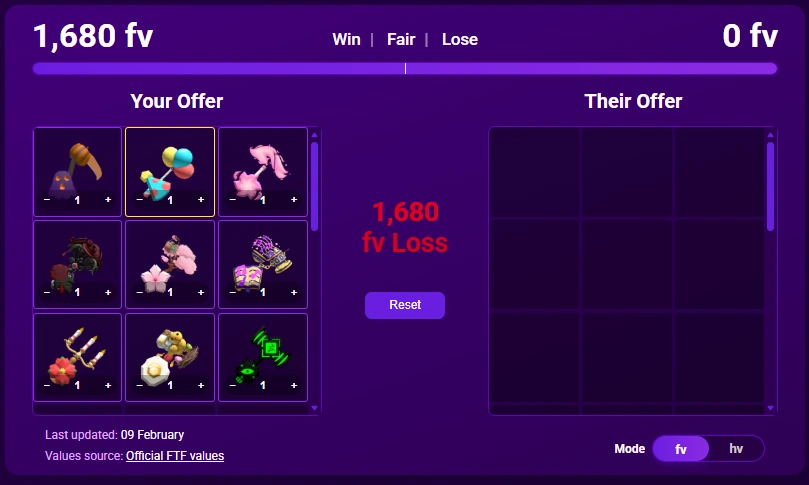
If you are searching for how to use the FTF Values trade calculator, the short answer is simple: enter every item and quantity you are giving, enter every item and quantity you receive, add any numeric add, and then read the difference. The useful decision comes after that number. Check the exact item image and rarity, then consider demand and stability before confirming the trade.
The observed FTF Values pages describe an independent community reference. They do not establish an official Roblox or Flee the Facility price list, so this guide avoids calling the source official. Use the calculator to make the two sides easier to compare, not to outsource your judgment or promise that another player will value an item the same way.
The result labels are easy to scan. A positive difference is a Value Win, an exact equality is Fair, and a negative difference is a Value Loss. Those labels describe the calculator's numeric comparison in FV units. They do not measure every negotiation detail, collector preference, sudden demand change, or whether an item will be easy to trade later.
This walkthrough follows the verified page flow: identify the item, understand the unit, build your offer, build what you receive, read the result, and perform a final context check. A small worked example and a limits section show where the calculator helps and where it should not be treated as a guarantee.
Quick answer
Add both sides completely, include numeric adds, read Value Win, Fair, or Value Loss, then recheck demand, stability, item identity, and the live trade window.
What the FTF Values trade calculator compares
The calculator compares the total FV value of an Offer with the total FV value of what you Receive. The interface supports searchable hammers, gemstones, wraps, weapons, event items, quantities, and extra numeric adds. Each side updates as you change an item or quantity, which makes it useful for testing a complete offer instead of guessing from one screenshot.
FV is the base comparison unit shown by the source. The FAQ also describes HV as a convenience unit derived from FV: 1 HV equals 30 FV. Switching the display unit changes how a value is shown, not the relative value of the item. Use one unit consistently while you compare both sides so a display conversion does not look like a new trade result.
An item name alone is not enough. Similar event names, matching hammer and gemstone designs, or a cropped image can lead you to select the wrong entry. Before adding an item, compare the visible name, image, and rarity with the item in the trade window. If you cannot identify the variant, pause the calculation and resolve that uncertainty first.
Demand and stability are separate context. The guide describes demand as a 0 to 5 signal for trading interest. Stability summarizes recent behavior with labels such as stable, improving, declining, or fluctuating. Neither signal changes the numeric FV total, but both can change how comfortable you feel holding the item after the trade.
A listed range is negotiating room from the source data, not a replacement for the current central value. If an item has a wide range, explain that uncertainty instead of selecting the most favorable edge. When the other player cites a value from an old screenshot, reopen the source and compare the exact current entry.
The calculator is strongest when every line is visible. It can expose a missing gemstone, a duplicate quantity, or a forgotten numeric add, but it cannot see a promise to trade back, an off-platform deal, or your own collection goal. Those remain human checks.
FTF Values is presented here as an independent community reference. It is not described as an official Roblox or developer price list, and the original .com identity was not verified.
How to use the FTF Values trade calculator
Use the same order every time: identify, add, compare, and review. The steps below mirror the published calculator workflow and include the checks that prevent a correct calculation from being applied to the wrong item.
Confirm the exact item
Search the value list, match the item image and rarity, and check whether the hammer, gemstone, wrap, weapon, or event item is the same variant shown in the trade window.
Build your Offer side
Search for every item you are giving. Set the correct quantity for duplicates and include any extra FV in Numeric adds. Do not subtract an item mentally because it seems small.
Build the Receive side
Add every item you would receive with the same care. Include split sets, low-demand fillers, and duplicates so the displayed total represents the real confirmation screen.
Read the difference
Compare the two totals in FV. More on the Receive side is Value Win, equal totals are Fair, and less on the Receive side is Value Loss. The label is a numeric comparison, not a guarantee.
Review context before accepting
Check demand, stability, the listed range, your collection goal, and the final live item list. If anything changes after the calculation, reset the check and enter the new offer.
How to read FV, HV, demand, and stability
A useful FTF trade calculator habit is to separate the number from the reasons you might accept or decline. Read these four signals in order, then write down the difference for a clear conversation with the other trader.
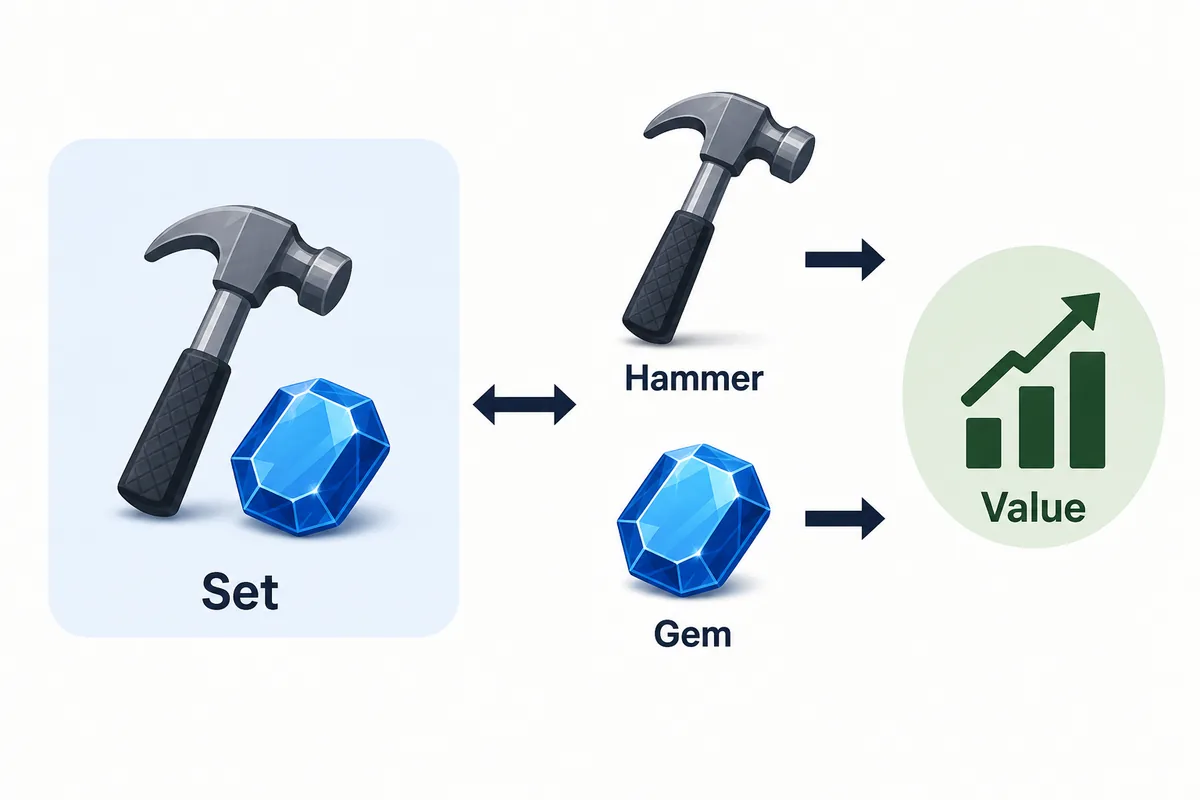
Use FV as the shared base unit. Compare the complete Offer and Receive totals, including quantities and numeric adds.
HV is a convenience display based on FV divided by 30. Switching units does not change the item's relative value or the comparison.
Demand is a separate 0 to 5 interest signal. High demand can make an item easier to move, but it does not change the calculator's FV arithmetic.
Stable, improving, declining, or fluctuating labels and a listed range add uncertainty context. They are not predictions or promises about your next trade.
Calculator results versus real trade context
The calculator answers the arithmetic question quickly. Use the following comparison to decide what to verify next instead of treating a green or positive label as the entire decision.
| Signal or resource | What it answers | What to verify next |
|---|---|---|
| FTF Values calculator | Whether the entered Offer and Receive totals differ | Exact item, quantity, numeric add, and final live window |
| FV | The base comparison unit for the listed items | That both sides use the same display unit |
| Demand and stability | How wanted and how recently changing an item may be | Whether you are comfortable holding the received item |
| FTF Values 2026 reference | Broader value-list and category context | Current entry, range, image, and rarity |
Limits and risk signals when using the calculator
Slow down when the input is unclear or the deal depends on information outside the calculator. These checks are especially important when a trade is large, time-sensitive, or based on a screenshot.
- The selected item does not match the image, rarity, or variant in the live trade window.
- A quantity or numeric add is missing, so one side looks smaller than the real offer.
- The result is based on an old screenshot rather than the current source entry.
- Many low-demand fillers make the FV total look strong but leave you with items you do not want to hold.
- The other player asks for a trust trade, an off-platform promise, or a rushed confirmation.
- One side reaches the published 27-item limit, requiring you to reconsider how the offer is grouped before you compare it.
FTF Values trade calculator FAQ
Bottom line
To use the FTF Values trade calculator well, make the input complete before you care about the label. Confirm the exact item, enter every quantity and numeric add on both sides, compare the FV difference, and then review demand, stability, range, and your own collection goal.
A Value Win can be a useful starting signal, Fair can still be inconvenient, and a Value Loss can be acceptable only when you knowingly pay for a specific goal. Reopen the source when values change, and confirm the final live trade window after any edit.
Sources checked for this guide
Last updated: October 23, 2026